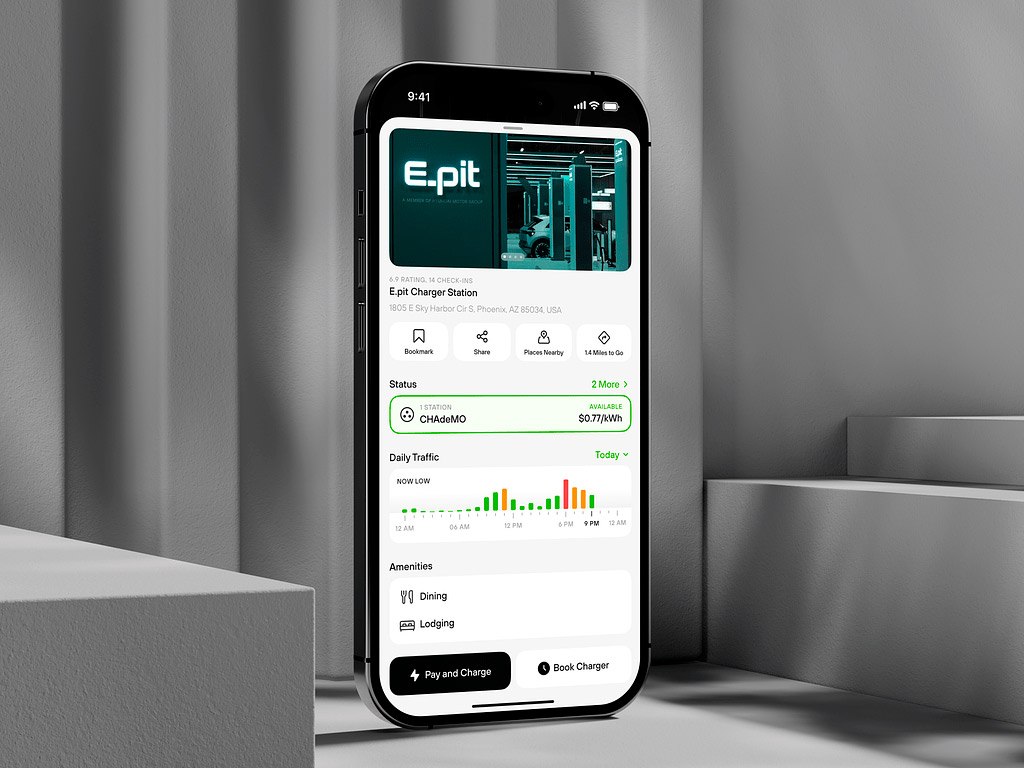
A custom SwiftUI pull-to-refresh with Lottie animations needs a non-standard control: the built-in SwiftUI refresh shows a simple spinner, and ready-made solutions on GitHub rarely support Lottie or customization. To fill that gap, the Shakuro developers have built an open-source component for implementing and customizing iOS pull-to-refresh with native and Lottie animations and progress bars.
Even the smallest interactions like page refreshing contribute to the overall impression, so custom animations for iOS apps are worth the effort. Building them by hand often means meddling with UIKit, one of the trade-offs that come up in any SwiftUI vs UIKit discussion, while this package uses only native SwiftUI code.
Below, we explain why to pick the package, how its two controls, PullToRefreshScrollView and PullToRefreshListView, work, and which states the refresh animation goes through.
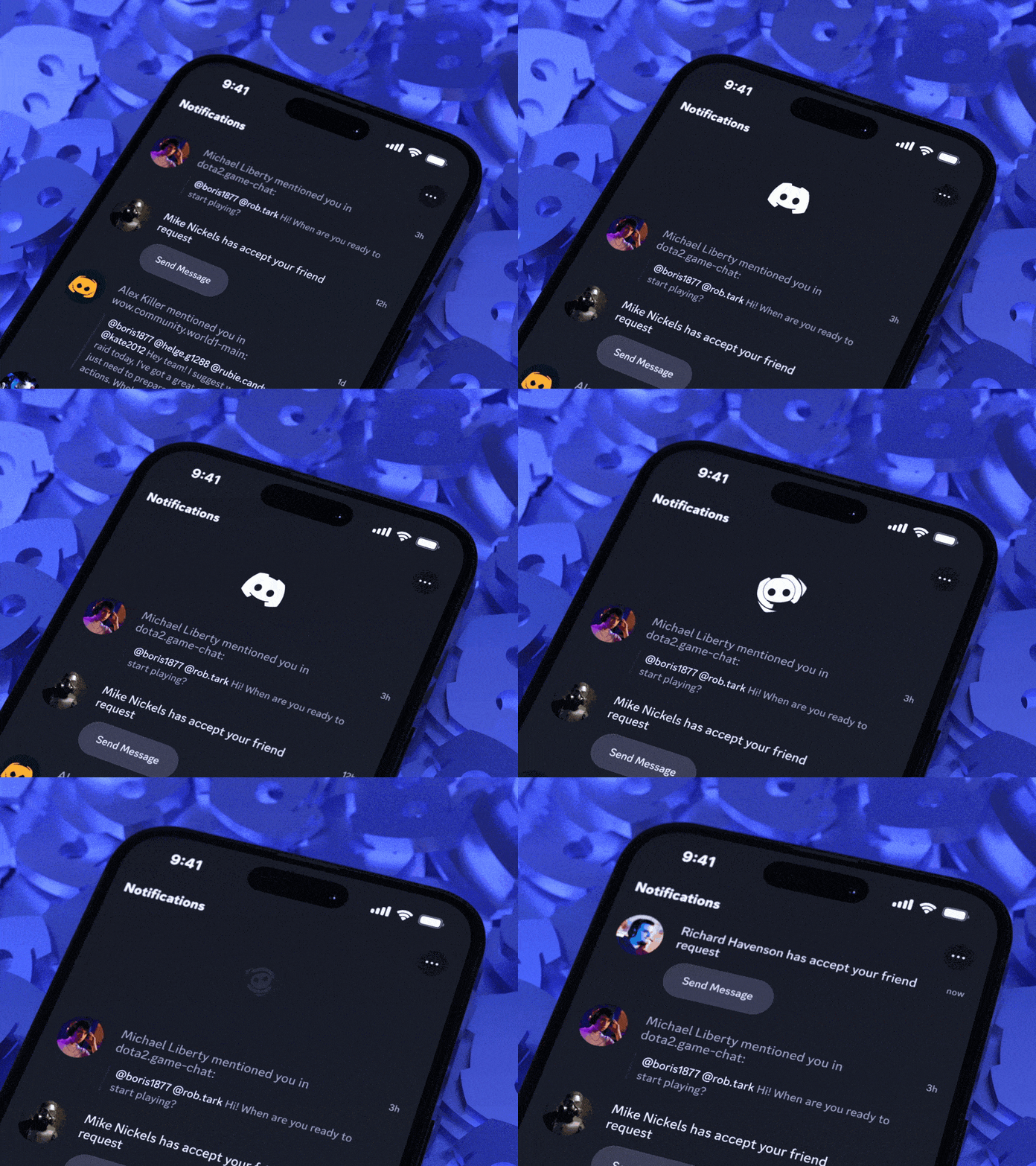
Custom pull-to-refresh for Discord
Why pick our iOS pull-to-refresh package?
- As we said, you can create visually appealing custom animations with progress bars for your iOS app.
- During iOS app development, you work not only with native animations but also with Lotties – JSON files made by UI/UX designers. Compared with standard solutions, our pull-to-refresh components support native and Lottie animations with progress bars.
- What’s more, it doesn’t have any dirty hacks. Beginner developers quite often meddle with the UIKit to get the desired functionality in SwiftUI. They write their own code that can do more harm than good, one of the typical iOS app development pitfalls. When we created the components, we used only native code. So no introspecting views hierarchy or UIKit wrappers.
- The package is easy to install. You can integrate it using Swift Package Manager, CocoaPods, or even manually.
How our Pull-to-Refresh works
When you tap and pull the page down, the animation kicks off and the data starts to refresh. Once the page data is updated, the animation stops and the user sees the new info. The main goal of this control is to trigger the data refreshing event and show the animation while data is being updated in the background.
Our UI package contains two controls: PullToRefreshScrollView and PullToRefreshListView. With these controls, you add the animation into SwiftUI ScrollView and List containers.
Let’s dwell on each control and its implementation.
PullToRefreshScrollView
It is a custom control that allows you to place and update any content on scroll view with a pull-to-refresh action.
Here’s an example of using PullToRefreshScrollView:
PullToRefreshScrollView(
    options: PullToRefreshScrollViewOptions(pullToRefreshAnimationHeight: 100,
                                            animationDuration: 0.3,
                                            animatePullingViewPresentation: true,
                                            animateRefreshingViewPresentation: true),
    isRefreshing: $isRefreshing,
    onRefresh: {
        debugPrint("Refreshing")
        DispatchQueue.main.asyncAfter(deadline: DispatchTime.now() + DispatchTimeInterval.seconds(5), execute: {
            isRefreshing = false
        })
    },
    animationViewBuilder: { (state) in
        switch state {
        case .idle:
            Color.clear
        case .pulling(let progress):
            ProgressView(value: progress, total: 1)
                .progressViewStyle(.linear)
        case .refreshing:
            ProgressView()
                .progressViewStyle(.circular)
        }
    },
    contentViewBuilder: { _ in
        Color(.lightGray)
            .frame(height: 1000)
    })
PullToRefreshListView
With this custom control, you can add and refresh content to the list view with a custom animation.
Look at this example showing how you can use PullToRefreshListView:
PullToRefreshListView(
    options: PullToRefreshListViewOptions(pullToRefreshAnimationHeight: 100,
                                          animationDuration: 0.3,
                                          animatePullingViewPresentation: true,
                                          animateRefreshingViewPresentation: true),
    isRefreshing: $isRefreshing,
    onRefresh: {
        debugPrint("Refreshing")
        DispatchQueue.main.asyncAfter(deadline: DispatchTime.now() + DispatchTimeInterval.seconds(5), execute: {
            isRefreshing = false
        })
    },
    animationViewBuilder: { (state) in
        switch state {
        case .idle:
            Color.clear
        case .pulling(let progress):
            ProgressView(value: progress, total: 1)
                .progressViewStyle(.linear)
        case .refreshing:
            ProgressView()
                .progressViewStyle(.circular)
        }
    },
    contentViewBuilder: { _ in
        ForEach(0..<5, content: { (item) in
            Text("Item \(item)")
        })
    })
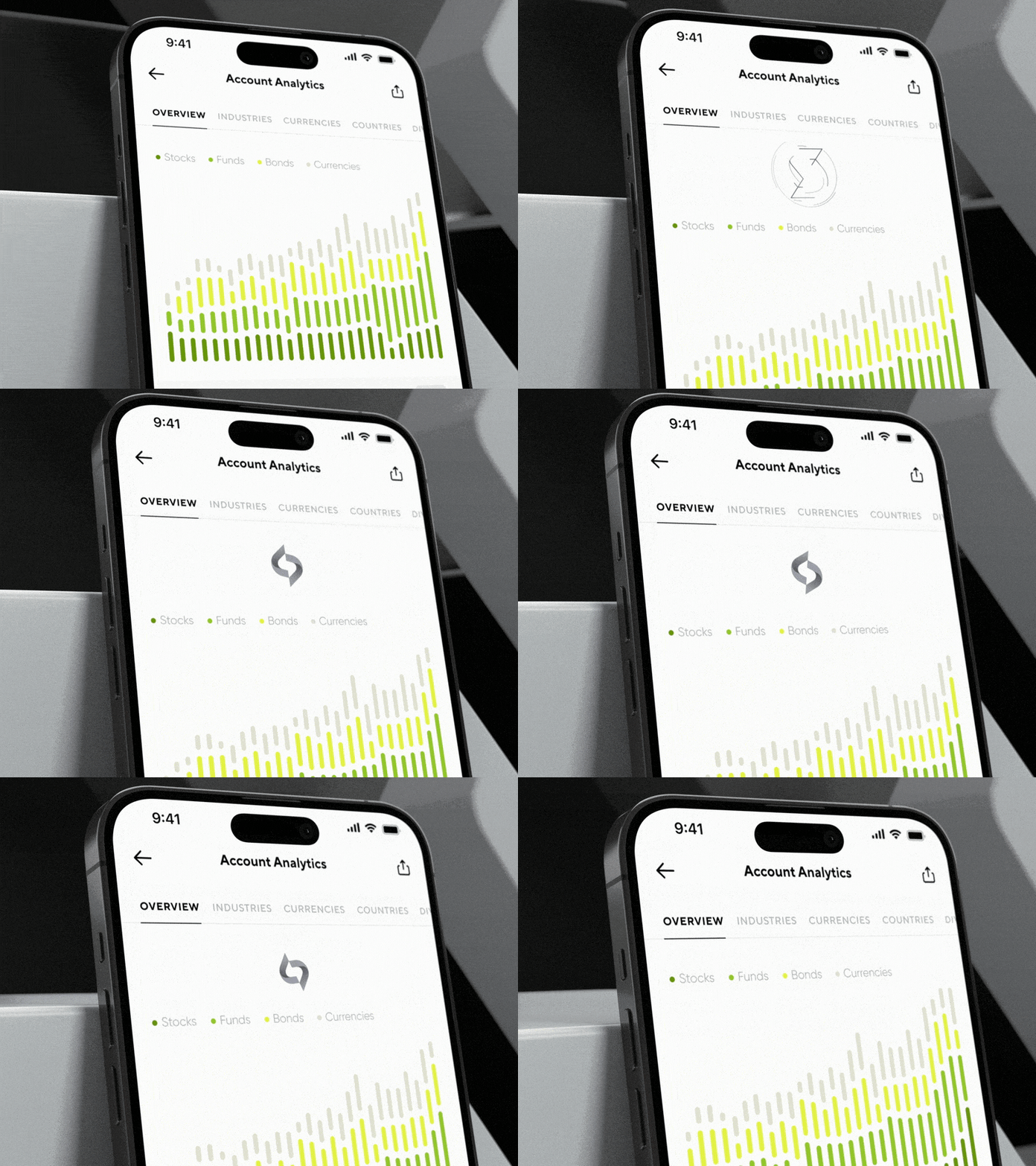
Custom refreshing animation showing Shakuro logo
When triggered, the UI component uses the onRefresh callback to start the refreshing action. To start or stop the refreshing state outside the animation, it relies on the isRefreshing binding value.
For example, when the refresh action is finished, you can stop refreshing the animation by setting the isRefreshing parameter to false. If your data comes from publishers, you can integrate Combine with SwiftUI to drive this binding.
To isolate the animation from the content view, the SwiftUI components apply .geometryGroup() for iOS 17 or .transformEffect(.identity) for iOS 15 and 16.
The pull-to-refresh animation has 3 states:
– Idle: waiting for the trigger;
– Pulling with current progress: the user touches the screen and drags it down to refresh the content. Progress is the value from 0 (idle) to 1 (refreshing). Pulling animation can be interactive and follow current progress.
– Refreshing: when progress turns to 1, the refresh is triggered and it actualizes the info on the page.
FAQ
How do you add a custom pull-to-refresh in SwiftUI?
Standard SwiftUI components show a simple spinner, so a custom animation needs a non-standard control. Shakuro’s package adds two of them: PullToRefreshScrollView for ScrollView content and PullToRefreshListView for List content. Wrap your content in one of them, start the refresh in the onRefresh callback, and control the state with the isRefreshing binding.
Can you use Lottie animations for pull-to-refresh in SwiftUI?
Yes. Lotties are JSON animation files made by UI/UX designers, and most pull-to-refresh solutions for SwiftUI don’t support them. The Shakuro pull-to-refresh components support both native SwiftUI and Lottie animations with progress bars, so the pulling animation can be interactive and follow the user’s gesture.
How do you install the PullToRefreshSwiftUI package?
You can integrate the package using Swift Package Manager, CocoaPods, or manually. It is built only with native SwiftUI code, without introspecting the view hierarchy or UIKit wrappers, so it doesn’t rely on the kind of hacks that beginner developers often use to get this functionality and that can do more harm than good.
How do you stop the pull-to-refresh animation when data is loaded?
Set the isRefreshing binding to false when the refresh action is finished. When triggered, the component calls the onRefresh callback to start refreshing, and the same binding lets you start or stop the refreshing state outside the animation. If your data comes from publishers, you can drive the binding with Combine.
What states does a pull-to-refresh animation have?
The animation has 3 states. Idle means it is waiting for the trigger. Pulling means the user drags the screen down, and progress goes from 0 (idle) to 1 (refreshing), so the animation can follow it. When progress reaches 1, the Refreshing state starts, the data updates in the background, and the animation stops once the new info is on the page.
Leverage the iOS SwiftUI Pull-to-Refresh components to your advantage
With the power of SwiftUI‘s native animation capabilities and Lottie dynamic animations, you create refresh controls that function flawlessly and impress users with captivating visuals. Thanks to the plain SwiftUI code used in the package, you integrate and create custom animations hassle-free.
The Shakuro team offers more useful solutions for app development: ready-made UI components, Swift libraries, frameworks, etc. So if you are looking for a way to cut corners, check out the Shakuro GitHub repository. You will find examples of various apps’ parts, processes, and interfaces.
Do you want to develop an app with custom animations? Contact us to build a functional and visually appealing product.
Written by Mary Moore and Sergey Popov
Related reading